Guide
Field mapping
Updated 12 October 2026
A mapping keeps a HubSpot property and a ClickUp field in step on every task a rule creates, in the direction you choose.
Open the mapping editor
In BothSync’s settings, click Edit mappings next to a rule. Mappings belong to a rule, because each rule creates tasks in its own ClickUp list with its own fields. Click Add mapping for a new pair, and Save mappings when you are done.
Each mapping has:
- HubSpot property: a property of the rule’s kind of record (deal, ticket or company).
- Direction: HubSpot → ClickUp, ClickUp → HubSpot or Both ways.
- ClickUp field: a field of the rule’s list. Only fields that fit the property are offered.
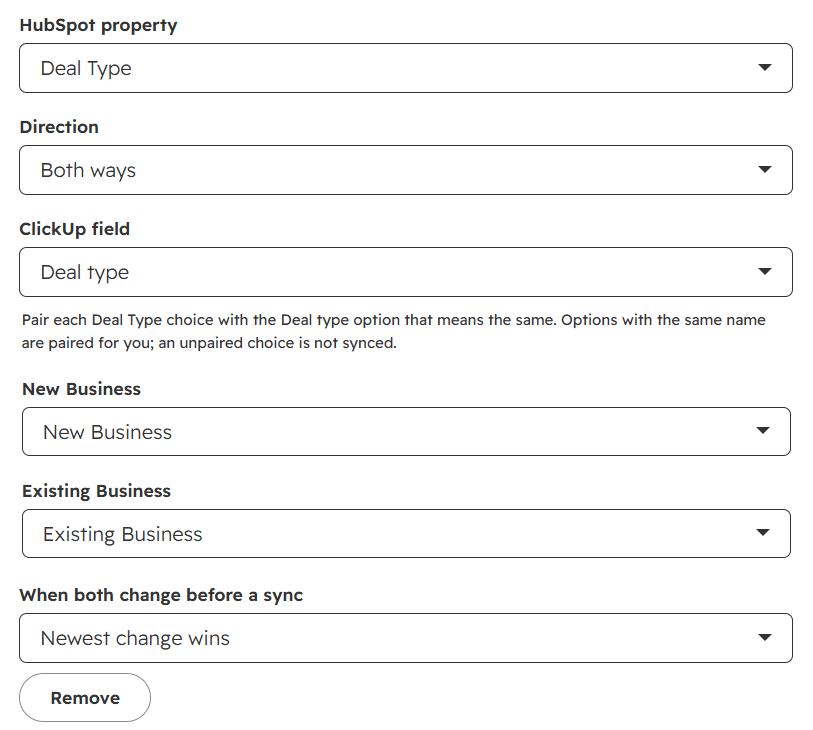
- When both change before a sync: for Both ways only, see Conflicts.
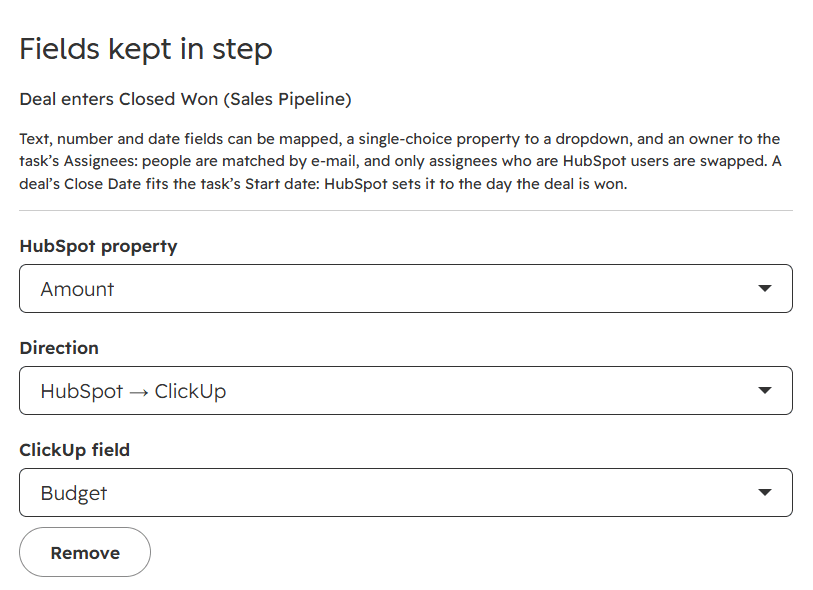
Which fields pair up
| Kind | HubSpot property | ClickUp field |
|---|---|---|
| Text | Single-line and multi-line text | Task name; Text, Text area, Email, URL and Phone fields |
| Number | Number, including amounts | Number and Money fields |
| Date | Date and date-and-time | Start date, Due date; Date fields |
| Choice | Dropdown select and radio select | Dropdown fields |
| People | Owner properties, such as the record owner | Assignees |
Not supported yet: HubSpot multiple checkboxes and single checkbox properties, ClickUp Labels and People fields, and ClickUp’s status, priority and tags. Pipeline and stage properties are not offered either: use the rule’s done stage to move a record.
Calculated and read-only HubSpot properties can only go from HubSpot to ClickUp. A rule holds up to 50 mappings. Each ClickUp field can be filled from one HubSpot property, and each HubSpot property from one ClickUp field.
Let BothSync suggest pairs
Click Suggest mappings and BothSync proposes up to ten pairs, each with the reason it fits. Add the ones you want with Add, or all of them with Add all, then save. The suggestions are made by AI from the names and types of the fields only; no record data is sent.
Directions
- HubSpot → ClickUp: a change on the HubSpot record is written to the task. A change made to that field in ClickUp stays until the HubSpot value changes again.
- ClickUp → HubSpot: a change on the task is written to the record. A change made in HubSpot stays until the ClickUp value changes again.
- Both ways: a change on either side is written to the other.
The first sync after a task is created, or after you add a mapping, copies the value from the source side. For Both ways, HubSpot’s value is copied unless it is empty. An empty value never wipes a filled one on the other side in that first sync. After that, clearing a value clears it on the other side too, except that a task name is never emptied.
Conflicts
For a Both ways mapping, choose what happens when both sides changed before BothSync synced them:
- Newest change wins (the default): the side edited last is kept, judged by when the record and the task were last changed.
- HubSpot wins: HubSpot’s value is kept.
- ClickUp wins: ClickUp’s value is kept.
BothSync syncs most changes within seconds and the rest within five minutes, so conflicts are rare.
Dropdowns
When you map a HubSpot choice property to a ClickUp dropdown, the editor lists each HubSpot choice next to a ClickUp option. Options with the same name are paired for you; letter case does not matter. Change any pair, or leave a choice Not paired. A value without a pair is not synced, and Recent activity says so.
Owners and assignees
Mapping an owner property to Assignees keeps the record owner and the task’s assignees in step. People are matched by email address: a HubSpot user and a ClickUp user with the same email are the same person.
- When the owner changes in HubSpot, the assignees who are HubSpot users are replaced with the new owner. Other assignees stay, so a designer who is not in HubSpot is never taken off the task.
- When the assignees change in ClickUp and exactly one of them is a HubSpot user, that person becomes the owner. If none or several are, the owner stays as it is, and Recent activity explains why.
The People section of the settings shows who is in both apps.
Task name
The task name can follow a HubSpot property only when the rule’s task name is exactly that property’s placeholder, such as {{dealname}}. Otherwise the first sync would overwrite one name with the other, so the editor refuses the pair.
Dates
Dates are synced as whole days. A HubSpot date-and-time property is turned into a day in your HubSpot account’s time zone, so a deal closed late in the evening keeps its day. ClickUp dates are read in the time zone of the ClickUp user who connected BothSync. A deal’s Close date fits the task’s Start date: HubSpot sets it to the day the deal is won.
Amounts and currencies
BothSync does not convert currencies. A HubSpot amount can be mapped to a ClickUp Money field in the same currency, or to a Number field. If a record’s amount is in another currency than the ClickUp field, that value is not synced for that record, and Recent activity says so.
Changing mappings
A mapping you change, for example to another field or with other dropdown pairs, starts afresh: its next sync is a first sync. Removing a mapping stops syncing that pair; the values already written stay.