Guide
Rules and task templates
Updated 28 October 2026
A rule says which HubSpot records start work in ClickUp, and its task template says what the new task looks like.
Two short videos on YouTube set up a rule and show it at work.
Where rules live
Open BothSync’s settings in HubSpot: Settings (the gear icon) → Integrations → Connected Apps → BothSync → Settings. The BothSync settings link on the ClickUp card of any record leads there too. Rules are listed under Rules; click Add rule for a new one, or Edit next to a rule to change it.
Rules can be added and edited only while ClickUp is connected, and one form is open at a time.
What starts a rule
Under Start when a, choose the kind of record:
- Deal: choose the pipeline under In pipeline and one or more stages under Enters stage. For a new deal rule the form picks the pipeline’s won stage.
- Ticket: choose the pipeline and one or more statuses under Enters stage.
- Company: choose one or more stages under Reaches lifecycle stage. For a new company rule it picks Customer.
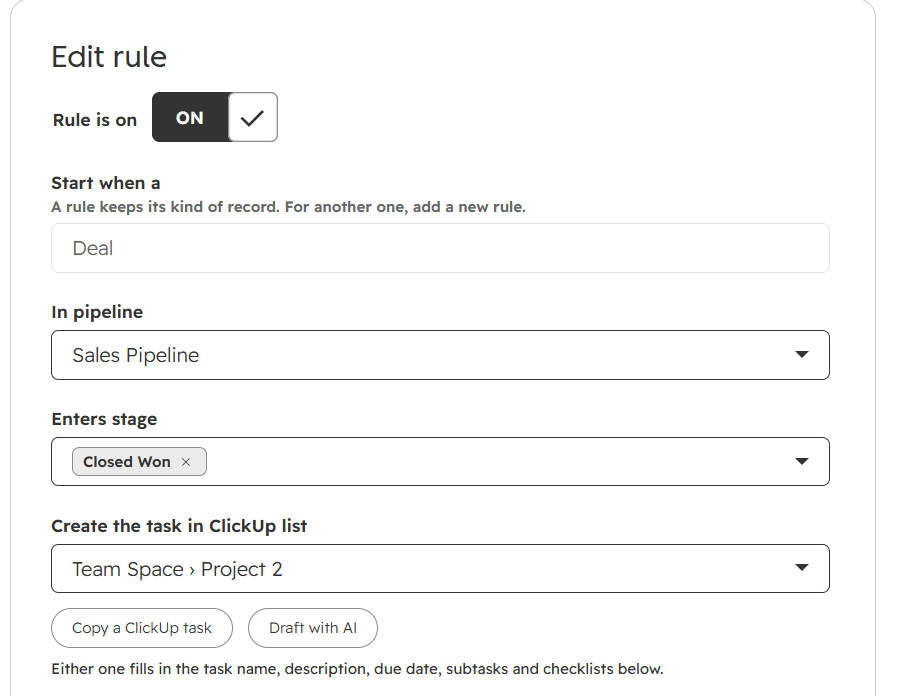
A rule keeps its kind of record. To start work from another kind, add a new rule.
Only records that arrive after the rule starts. A rule acts on records that enter one of its stages after you save it. Records already in the stage are left alone, so a new rule never floods ClickUp with your history. Switching a rule off and on again, or changing its stages or its limit, works the same way: only records that enter a stage after that moment are picked up.
Each record gets one task per rule, ever. If a deal leaves the stage and comes back, or its task was deleted, BothSync does not create a second task for the same rule. If two rules match the same record, each creates its own task.
If Ticket or Company offers no stages, BothSync was not given access to that kind of record when it was installed. Write to support and we sort it out with you.
Limit a rule to some records
Under Limit to deals where (or tickets, or companies), choose a HubSpot property such as a project type or the deal type, then choose under … is one of the values that should start the rule. Records with another value, or with none, are left alone. No limit starts the rule for every record that enters the stage.
That way one stage can start different work. One rule takes Closed Won deals whose project type is Website and creates the website template, and a second rule on the same stage takes SEO deals with a template of its own.
The list offers properties where one value is picked from a list, which HubSpot calls dropdown select and radio select. Properties that allow several values at once are not offered.
Where the task goes
Create the task in ClickUp list offers every list the connected ClickUp account can see, shown as Space › Folder › List. Archived lists are left out.
The task template
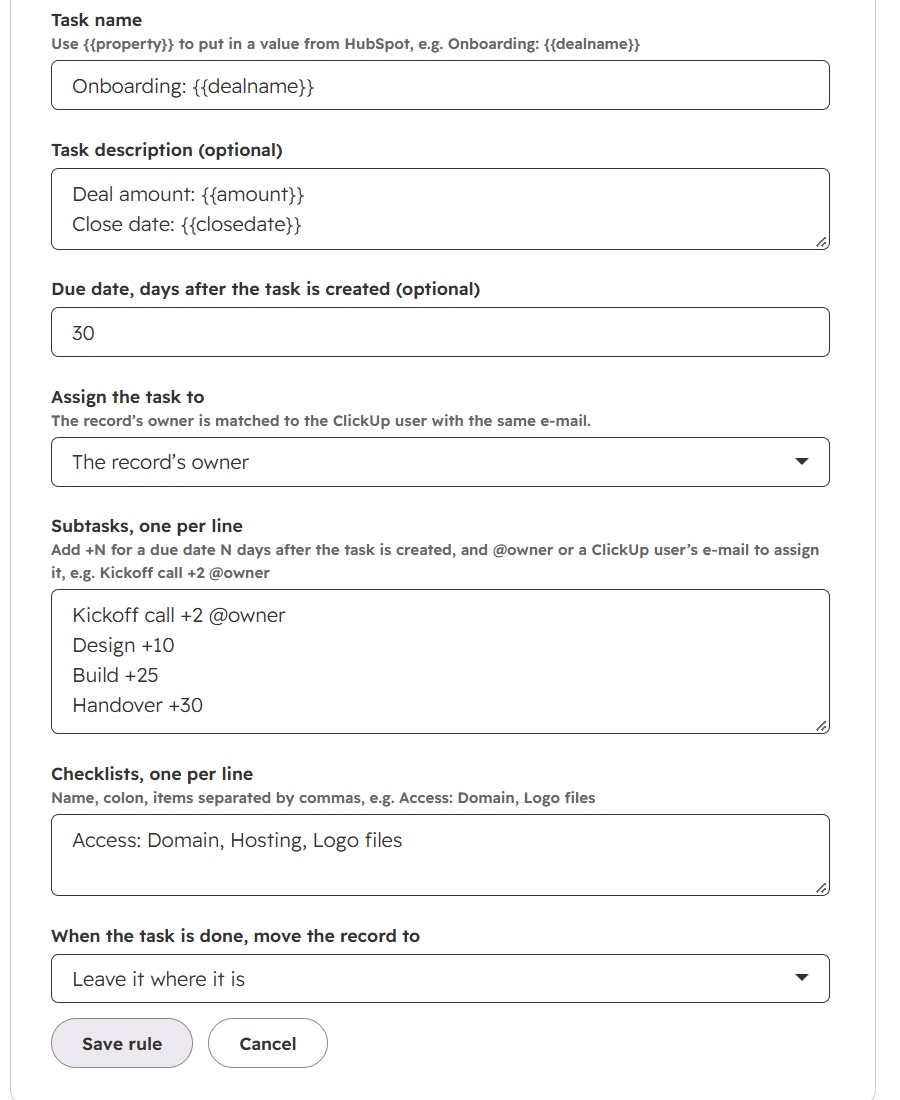
The rest of the form describes the task BothSync creates.
| Field | What it does |
|---|---|
| Task name | The task’s name, with values from HubSpot (see placeholders). It starts as Onboarding: {{dealname}} for deals, Support: {{subject}} for tickets and Onboarding: {{name}} for companies. |
| Task description | Optional text for the task. BothSync adds a link back to the HubSpot record at the end. |
| Due date, days after the task is created | Optional. 0 is the day the task is created, 14 is two weeks later. Due dates are whole days, without a time. |
| Assign the task to | No one, The record’s owner, or a fixed person from the ClickUp workspace. The owner is matched to the ClickUp user with the same email address. |
| Subtasks, one per line | Each line is a subtask. End it with +N for a due date N days after the task is created, and with @owner or a ClickUp user’s email to assign it: Kickoff call +2 @owner. |
| Checklists, one per line | Each line is a checklist: its name, a colon, and items separated by commas: Access: Domain, Logo files. |
| When the task is done, move the record to | Deals and tickets only. A stage of the rule’s pipeline, or Leave it where it is. See When the task is done. |
Start dates, tags and priority are not part of the template. A start date can come from HubSpot through a field mapping, for example the deal’s close date.
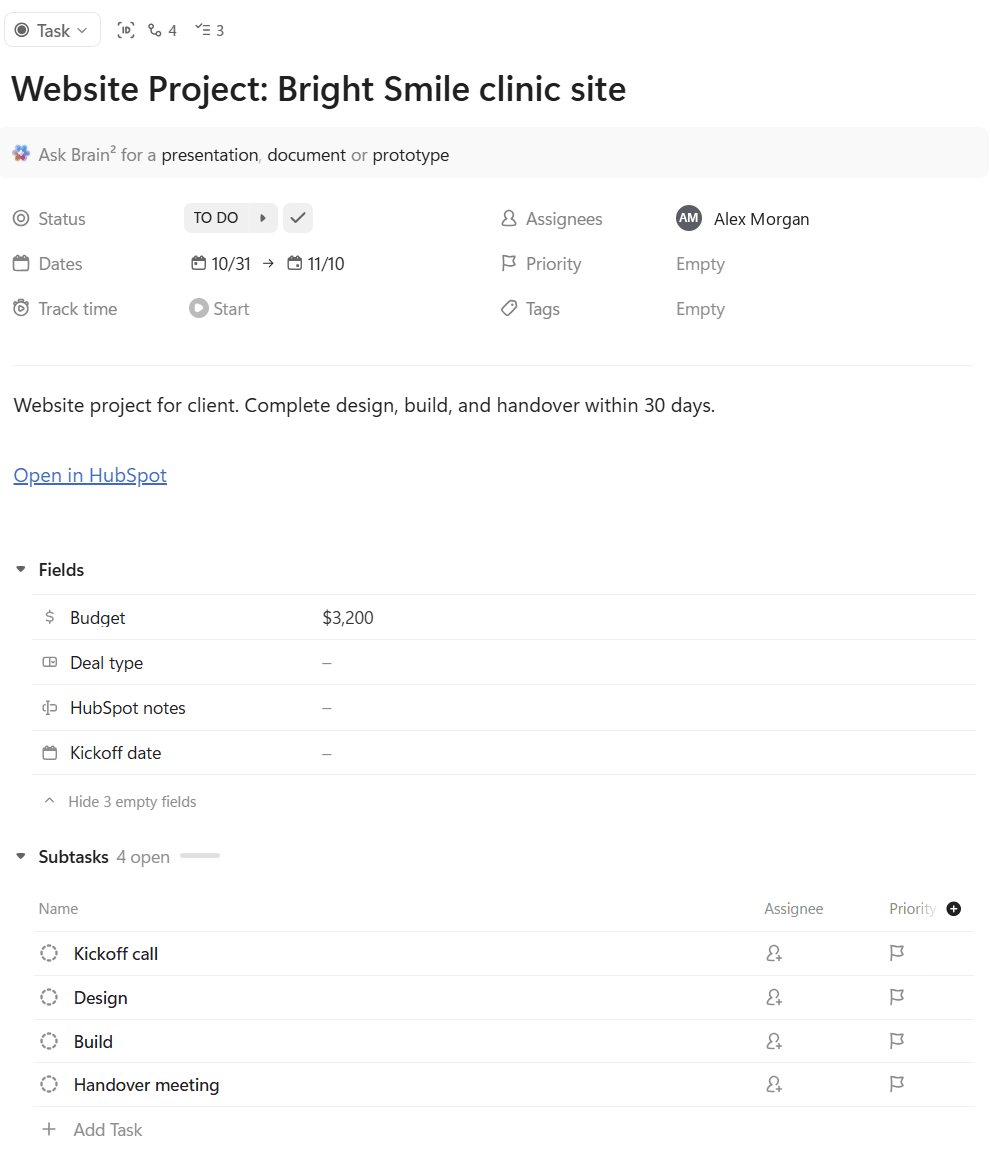
Placeholders
Write {{property}} with the HubSpot property’s internal name to put in its value: {{dealname}}, {{amount}}, {{subject}}, {{name}}. HubSpot shows each property’s internal name in its property settings.
- Placeholders work in the task name, the description, subtask names and checklists.
- A property that is empty on the record, or that does not exist, is left out. Check the spelling: BothSync does not check placeholders when you save.
- Dates appear as YYYY-MM-DD.
- Amounts appear with their currency, such as $12,000: the deal’s own currency, or your HubSpot account’s company currency when the deal has none.
- If the name comes out empty, the task is called “Untitled”.
- Choice properties put in their internal value, which can differ from the label you see, and owner properties put in the owner’s ID. Text properties such as the deal name work best.
Copy a ClickUp task
If a task in ClickUp already looks the way new projects should, click Copy a ClickUp task above the task name, choose the task, and click Copy. BothSync offers the most recently updated tasks of the chosen list.
It copies the name, description, due dates (as days after the task’s start), subtasks and checklists into the form. Assignees, tags, priority and custom fields are not copied. Replace the client’s details with placeholders such as {{dealname}} before you save.
A template holds up to 25 subtasks and 5 checklists of up to 20 items each.
Draft with AI
Click Draft with AI and describe the work in your own words: what happens after the record reaches the stage, in which order, and by when. BothSync drafts the task name, description, due date, subtasks and checklists from it, in the language you wrote in.
Only your description and the names of the HubSpot properties are sent to the AI, never the data in your records. Nothing is saved until you click Save rule, so check every line first. AI drafts and mapping suggestions share a daily allowance per HubSpot account.
How assignees are found
BothSync matches people by email address. The record’s owner in HubSpot becomes the assignee in ClickUp when a ClickUp user of the workspace has the same email. If the record has no owner, or the owner has no ClickUp user, the task is created without an assignee and Recent activity says why.
The People section of the settings shows who is in both apps, and who is only in one and therefore never assigned.
When the task is done
If you choose a stage under When the task is done, move the record to, BothSync moves the deal or ticket there as soon as the task reaches a done or closed status in ClickUp, such as Complete. Use it to move a deal to Delivered or to close a ticket. Reopening the task does not move the record back.
Changing or stopping a rule
- Changes to the template apply to tasks created from then on. Tasks that already exist keep what they have.
- To stop a rule, click Edit and switch off Rule is on. It creates no more tasks, and its mapped fields and done stage pause. The status and latest comment of its tasks still show on the records. Switching it on again resumes them, and new tasks come only for records that enter the stage from then on.
- Rules are not deleted. A rule you no longer need stays switched off.
- If you choose another ClickUp list, mappings to custom fields the new list does not have must be removed first.