Guide
Activity and troubleshooting
Updated 12 October 2026
When something did not sync the way you expected, Recent activity in BothSync’s settings usually says why.
Recent activity
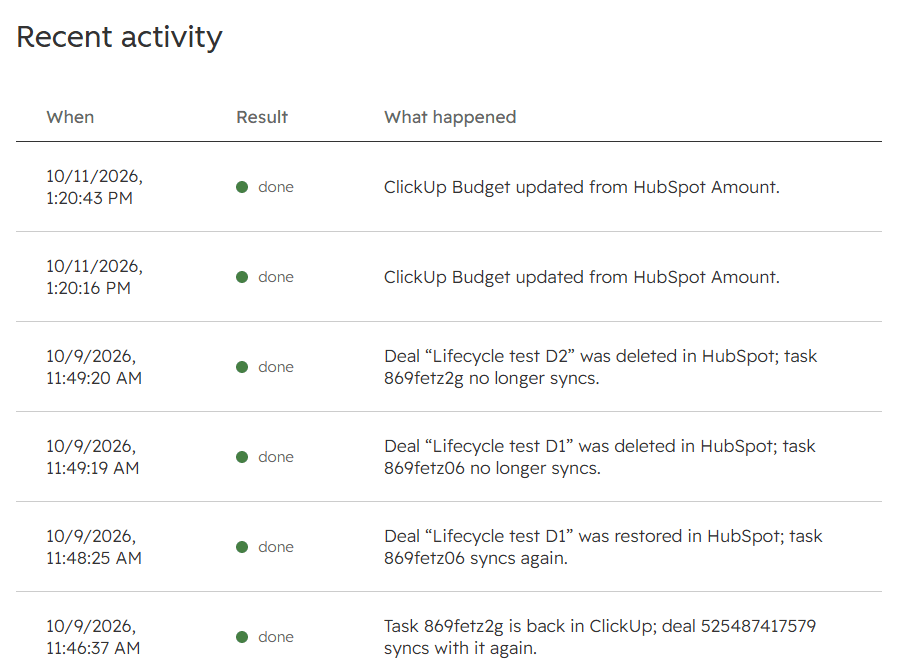
Recent activity lists the latest 30 things BothSync did, newest first. Each entry has a time, a result and a sentence saying what happened:
- done: it worked, for example a task was created or a field was updated.
- skipped: BothSync chose not to sync something, and says why. Most need a change to a mapping or a person’s email address.
- failed: HubSpot or ClickUp refused a change, or did not answer after several tries. The entry quotes their reason.
Entries are kept for 90 days. They name records and tasks by their name or their ID, such as “deal 123”.
No task was created
- Did the record enter the stage after the rule was saved? A rule acts only on records that enter its stage from the moment it is saved or switched on. A record already in the stage is left alone: move it out and back in, and it is picked up.
- Is the rule on? Its tile in the settings shows On or Off.
- Does the record already have a task for this rule? Each rule creates one task per record, ever, even if that task was deleted later. The ClickUp card on the record lists its tasks.
- Is the right pipeline chosen? A deal rule watches the stages of one pipeline.
- Did ClickUp refuse the task? Look in Recent activity for a failed entry, and check that the person who connected ClickUp can still see the rule’s list.
Then click Sync now on the record’s card to make BothSync check it again.
A field did not sync
- The value has no pair: a HubSpot choice or ClickUp dropdown option is not paired in the mapping. Open Edit mappings and pair it.
- Another currency: the record’s amount is in another currency than the ClickUp Money field. BothSync does not convert currencies; map the amount to a field in the same currency, or to a Number field.
- The direction: a HubSpot → ClickUp mapping never changes HubSpot, and the other way round. See Directions.
- Not yet: changes to most HubSpot properties arrive with the check every five minutes. See How fast.
- ClickUp Free plan: ClickUp Free allows a limited number of custom field uses. Once they are used up, ClickUp refuses field updates and the entries show failed.
The task has no assignee
BothSync matches the record owner to a ClickUp user by email address. The entry for the new task says why no one was assigned: the record has no owner, the owner is not an active HubSpot user, or no ClickUp user has the owner’s email. The People section of the settings shows who is in both apps. Use the same email address in both, or assign a fixed person in the rule.
The owner did not change
With an owner ↔ Assignees mapping, BothSync changes the HubSpot owner only when exactly one of the task’s assignees is a HubSpot user. With none or several, it keeps the owner and says so in Recent activity.
“BothSync lost access to ClickUp”
ClickUp no longer accepts BothSync’s connection, usually because BothSync was removed in ClickUp or the person who connected it left the workspace. The sync is paused and nothing is lost.
- In BothSync’s settings, click Reconnect ClickUp.
- Approve BothSync in HubSpot, then in ClickUp, as a person who will stay in the workspace. Select the same workspace as before: BothSync does not accept another one, since your rules and tasks are in that one.
- Everything that waited is synced within minutes.
While access is lost, rules and mappings cannot be edited, and the card shows task statuses as unknown.
“Gave up on … after 8 attempts”
HubSpot or ClickUp did not answer, or kept refusing, for longer than BothSync retries. Once both work again, the check every five minutes brings fields and statuses back in line. To do it at once, click Sync now on the record. If the entry quotes a refusal that keeps coming back, write to support.
The card is not on the record
HubSpot does not place app cards by itself. Add it once for each kind of record, as described in Getting started.
Still stuck?
Write to support@bothsync.com with the record or task link and the entry from Recent activity. See Support.